Perform the following steps to configure a secondary management console (MC 2) in Rack-1.
Procedure
Do not log out of the primary management console.
Disconnect the keyboard and monitor cables from the primary management console (MC 1)
ports.
Connect the keyboard and monitor cables to the secondary management console (MC 2) ports. The
MC 2 ports are the lower USB and VGA connectors on the patch panel that is located just below the
keyboard/display drawer.
Note: Before the management consoles are configured with host
names, the title bar of screens on MC 1 will show "localhost" while the
title bar of screens on MC 2 will show "localhost2".
At the lower right front of Rack-1, confirm that management console MC 2 is powered on (green power button LED
is lit). If the management console is not already powered
on, press the power on button and then go to the next step.
Note: As the management console boots, a list of processes
are displayed along with their status. It is normal for some of the processes to indicate a failure.
Not all the processes are needed for this management console to function properly.
If the keyboard layout selection screen is displayed (as shown in the following example), tab
to highlight Exit and do not run this program again or Change to
new keyboard layout, as required. Press the space bar to select, then click
Next.
--------------------------------------------------------------------------------
If you are using a non English US keyboard, you can choose to
change your keyboard layout configuration.  Make your
selection and press 'Next' to continue.  If you don't press
'Next' within 30 seconds, this program will terminate
automatically.

Exit and run this program again on the next console start
Exit and do not run this program again.
Change to a new keyboard layout.

		Next				Cancel

<Tab>/<Alt-Tab> between elements  |  <Space> selects  |  <F12> next screen
--------------------------------------------------------------------------------
If the change locale screen is displayed, you have 20 seconds to make a selection. Select the
second option, Exit now and don't prompt for locale again.
You can change the locale now in order to run the HMC in a
different locale. If you do not make a selection in 20 seconds,
the dialog exits. Enter your selection.

* Change Locale
* Exit now and don't prompt for locale again.
* Exit now and prompt again for it.
If any license agreements are displayed, accept the agreements.
Wait a maximum of 5 minutes for the HMC configuration to be updated, and the HMC prelogin
screen to display.
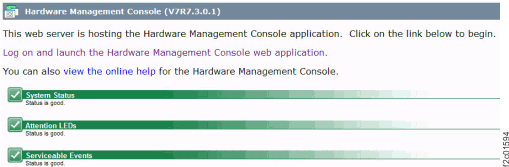
Is the management console prelogin screen displayed including the status at the bottom, as shown
in Figure 1?Figure 1. HMC login screen
Yes, click Log on and launch the Hardware Management Console web
application and continue with the next step.
Note: You must start the service information center from the IBM®
DS8000® series Service Documents
CDROM in the ship group and then navigate
to the MAP isolation procedure. Return here and continue when you correct the
problem.
The management console is shipped with predefined user
IDs and passwords. The user IDs and passwords are case-sensitive. Enter the user ID and password as
shown in the following example.
ID: CE
Password: serv1cece
If a Tip of the Day is displayed, clear the option to display it and then
close the window.