ThinkPad T510 and T520 laptop servers LED indicators
This section contains information about LEDs that are on
the T510 and T520 laptops. This information is also in the ThinkPad
T510, T510i, and W510 Hardware Maintenance Manual and Hardware Maintenance Manual ThinkPad® T520, T520i,
and W520,
which are included on the service documentation CD that is part
of the ship group. The CD should be stored in the document box at
the front upper left corner of Rack-1. Although the condition of
LEDs might indicate a failure, the LEDs should not be used as a starting
point for a repair.
Status indicators
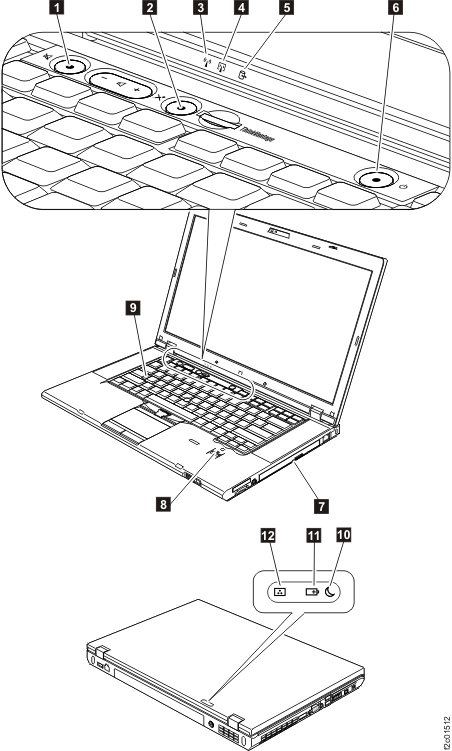
The system status indicators,
shown in Figure 1,
show the status of the computer. Table 1 lists the definitions
of the status indicators. Figure 1. Status indicators
Table 1. Status
indicators
Status indicator
Definition
Speaker mute
Orange
The speaker is on mute. To set the speakers on mute or unmute,
press the speaker mute button.
Microphone mute
Orange
The microphone is on mute. None of the recording devices is available
while the microphone mute is on by default.
Wireless LAN, Wireless WAN, or WiMAX
status
Green
The wireless LAN feature (the IEEE 802.11 b/g standard, 802.11
a/b/g, or 802.11n), wireless WAN feature, or WiMax feature is on,
and the radio link is ready for use.
Blinking green
Data is being transmitted.
Bluetooth wireless or Wireless USB
status
Green
The Bluetooth wireless feature is on, and the radio link is ready
for use.
Blinking green
Data is being transmitted.
Device access
Green
Data is being read from or written to the hard disk drive, the
diskette drive, or the drive in the Serial Ultrabay Enhanced device.
When this indicator is on, do not put the computer into sleep (standby)
mode or turn off the computer.
Note: Do not move the system while the
green device access light is on. Sudden physical shock could cause
drive errors.
Power on
Green
The computer is on and ready to use. This indicator stays lit
around the power-on button whenever the computer is on and is not
in sleep (standby) mode.
Serial Ultrabay Enhanced device status
Green
A Serial Ultrabay Enhanced device is installed and in use.
Blinking green
A Serial Ultrabay Enhanced device is in the process of being detached.
Turn off
A Serial Ultrabay Enhanced device is ready to be attached or detached.
Fingerprint reader status
Green
The fingerprint reader is ready to swipe.
Blinking green
The fingerprint is being authenticated or has been authenticated.
Turn off
The fingerprint could not be authenticated.
Caps lock
Green
Caps Lock mode is enabled. To enable or disable Caps Lock mode,
press the Caps Lock key.
Sleep (standby for Windows XP) status
Green
The computer is in sleep (standby) mode.
Blinking green
The computer is entering sleep (standby) mode or hibernation mode,
or is resuming normal operation.
Battery status
Green
The battery has more than 20% charge.
Orange
The battery has between 5% and 20% charge.
Fast-blinking orange
The battery has less than 5% charge.
Note: The battery may be charging.
Slow-blinking orange
The battery is being charged. When it reaches 20%, the blinking
color changes to green.
Slow-blinking green
The battery has between 20% and 80% charge, and charging is continuing.
When the battery reaches 80% charge, blinking stops, but the charging
may continue until the battery is 100% charged.
Note: If the computer
is operating on battery power, the battery status indicator does not
work while the computer is turned off or is in sleep (standby) mode
or hibernation mode.
Quick-blinking orange
An error has occurred in the battery.
The battery status indicator is off
The battery pack of the computer is detached.
Color sensor status
Green
Calibration is complete. When the lid is opened, the indicator
turns off.
 Speaker mute
 Microphone mute
 Wireless LAN, Wireless WAN, or WiMAX
status
Wireless LAN, Wireless WAN, or WiMAX
status 
 Bluetooth wireless or Wireless USB
status
Bluetooth wireless or Wireless USB
status 
 Device access
 Power on
 Serial Ultrabay Enhanced device status
 Fingerprint reader status
 Caps lock
 Sleep (standby for Windows XP) status
 Battery status
 Color sensor status