Installing and testing the Rack-2 high-performance flash enclosures
You are here to install one or more high-performance flash enclosures in Model 98B,
98E, or 98F Rack-2.
Procedure
Begin the installation of the Rack-2 flash enclosures at the HMC.
From the navigation area, click Storage Facility Management > storage
facility.
From the bottom Task area, click MES Install/Remove > Install Storage Enclosure or Drives.
The Install window opens and asks if you were sent from the installation or
MES instructions. Click Yes.
The Single Choice Message Box window opens and prompts "Select the
component or enclosure you would like to install." Select Install Storage
Enclosures and then click Submit.
Another Single Choice Message Box window asks whether you want to install
FC-AL storage enclosures or high-performance flash enclosures. Select Install
High-Performance Flash Enclosures and then click Submit.
Another Single Choice Message Box window opens and prompts Select the Storage Facility Image
you want to assign the storage enclosures to. Select the storage facility image that is shown
and click Submit.
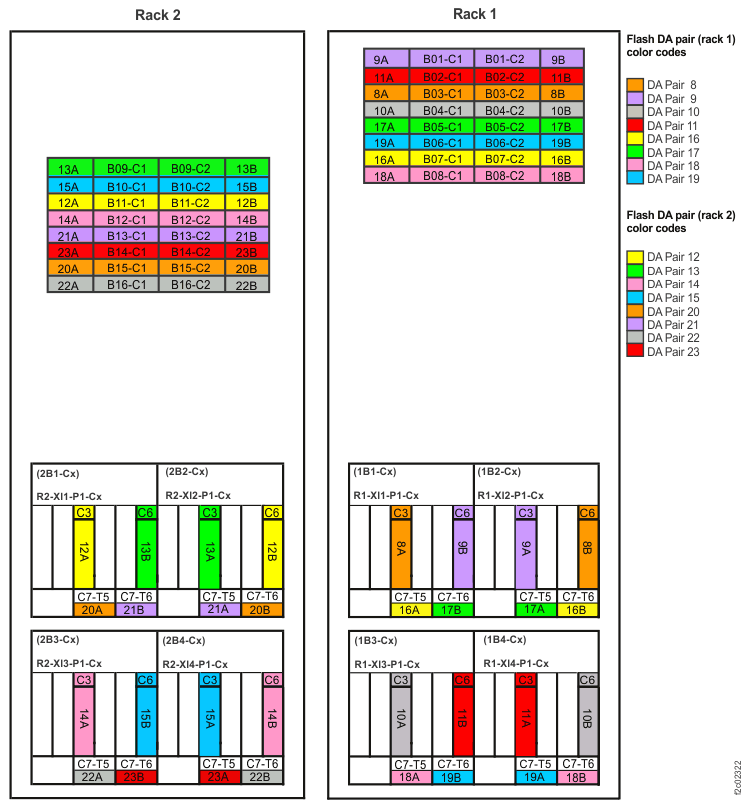
Install the high-performance flash enclosures one at a time, in the order that is shown in
Table 1 (for Models
98B and 98E) and Table 2 (for Model
98F).
Table 1. Flash enclosure installation order (Models 98B, 98E)
Installation order
Flash enclosure location
DA pair ID
PCIe storage interface locations
1
R2-B04
22
(2B3) R2-XI3-P1-C7-T5
(2B4) R2-XI4-P1-C7-T6
2
R2-B03 (Model 98E only)
20
(2B1) R2-XI1-P1-C7-T5
(2B2) R2-XI2-P1-C7-T6
3
R2-B02
23
(2B3) R2-XI3-P1-C7-T6
(2B4) R2-XI4-P1-C7-T5
4
R2-B01 (Model 98E only)
21
(2B1) R2-XI1-P1-C7-T6
(2B2) R2-XI2-P1-C7-T5
Table 2. Flash enclosure installation order (Model 98F)
Installation order
Flash enclosure location
DA pair ID
PCIe storage interface locations
1
R2-B16
22
(2B3) R2-XI3-P1-C7-T5 (2B4) R2-XI4-P1-C7-T6
2
R2-B15
20
(2B1) R2-XI1-P1-C7-T5 (2B2) R2-XI2-P1-C7-T6
3
R2-B14
23
(2B3) R2-XI3-P1-C7-T6 (2B4) R2-XI4-P1-C7-T5
4
R2-B13
21
(2B1) R2-XI1-P1-C7-T6 (2B2) R2-XI2-P1-C7-T5
5
R2-B12
14
(2B3) R2-XI3-P1-C3 (2B4) R2-XI4-P1-C6
6
R2-B11
12
(2B1) R2-XI1-P1-C3 (2B2) R2-XI2-P1-C6
7
R2-B10
15
(2B3) R2-XI3-P1-C6 (2B4) R2-XI4-P1-C3
8
R2-B09
13
(2B1) R2-XI1-P1-C6 (2B2) R2-XI2-P1-C3
The Select PCIe Interface Card Pair window prompts you to select the
interface card pair to install the flash enclosure to. Select the DA pair ID for the enclosure to be
installed, and click OK.
The Select Storage Enclosure window prompts you to select the flash
enclosure(s) to install. Select the enclosure location and click OK.
The Action Panel displays the DA pair and location of the flash
enclosure(s) to install. Confirm that the location is correct and click OK to
install.
A warning panel is displayed. Read the panel and click Next to continue.
The InsMesInstructions window directs you to return to the MES or
installation instructions to install the storage enclosure. Do NOT click
Next at this time. Continue to the next step.
Refer to Table 1
(for Models 98B and 98E) and Table 2 (for Model
98F) to confirm the two PCIe storage interface locations for the flash enclosure that you are
installing.
For Model 98F flash enclosures with PCIe storage interface cards C3 and C6 (R2-B09, B10, B11,
B12): fully insert ONLY the two PCIe storage interface cards for the enclosure you are installing.
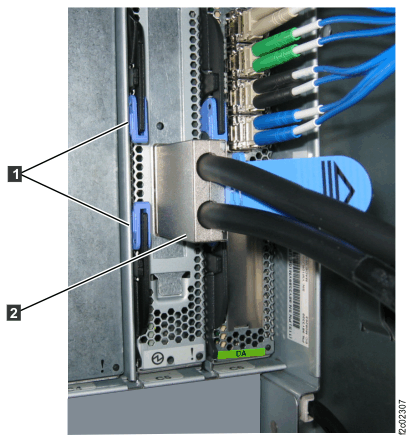
Slide the card in and the latch the two blue levers 2 .
Gently push and pull the PCIe cable 2 to ensure that it is
seated.
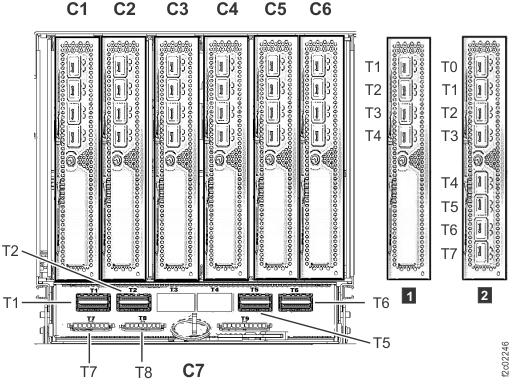
For all other flash enclosures: connect the PCIe cables to these two ports ONLY.
Ensure the PCIe connectors are firmly seated into the cards. See Figure 1, Figure 2, Figure 3, and
Figure 4.
Note: I/O enclosure PCIe storage interface card (locations C3 and C6) not
shown.
Note: The older generation I/O enclosure PCIe and PCN card might not
include T3, T4, and T10 ports.
Figure 5. PCIe storage interface card
After the two PCIe cables are connected (and cards seated, if
applicable) , click Next on the InsMesInstructions
window.
The HMC logically installs and verifies the flash enclosure. The HMC displays some or all of
the following messages:
Task in Progress... Powering on the FRU(s)
Task in Progress... Verifying the FRU power on
Verification progress... Verification progress: Working
Task in Progress... Activating the system (could take 20 minutes or more) Working
Task in Progress... Verifying system
Verification progress... Verification progress: Working
Task in Progress...Activating application(s)
Verification progress... Verifying application(s)
Verification progress... Verification progress: Working
The HMC display indicates that the installation has completed successfully and directs you to
return to the MES or installation instructions. Click Next.
The HMC displays some or all of the following messages:
Service action ending... Working
The HMC service panel then
closes. Continue to the next step.
Have all the high-performance flash enclosures in Rack-2 been installed?
Yes, to go the next step.
No, return to step 1 to
install the remaining flash enclosures.
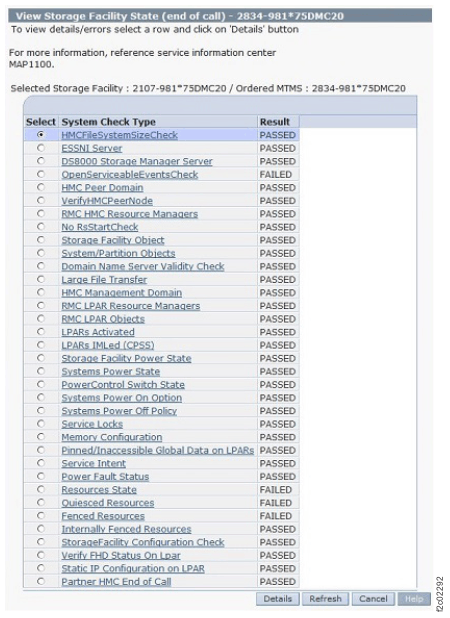
Display and repair any related open serviceable events.
All status fields should display as PASSED except for the following.
If the Resources State result is Failed, select it and then click
Details. If the Drive state is 5 (Certifying),
this is normal and you should go to the next step.
If other checks are failed, select it and then click Details. They should
be fixed before going to the next step. If needed, call the next level of support.
Note: If the Large File Transfer displays as FAILED, the remaining System Check Types
below it cannot be displayed. Contact the next level of support.
Figure 6. Window: View Storage Facility State
Are you also installing Rack-3 on this storage facility as part of this installation
activity?
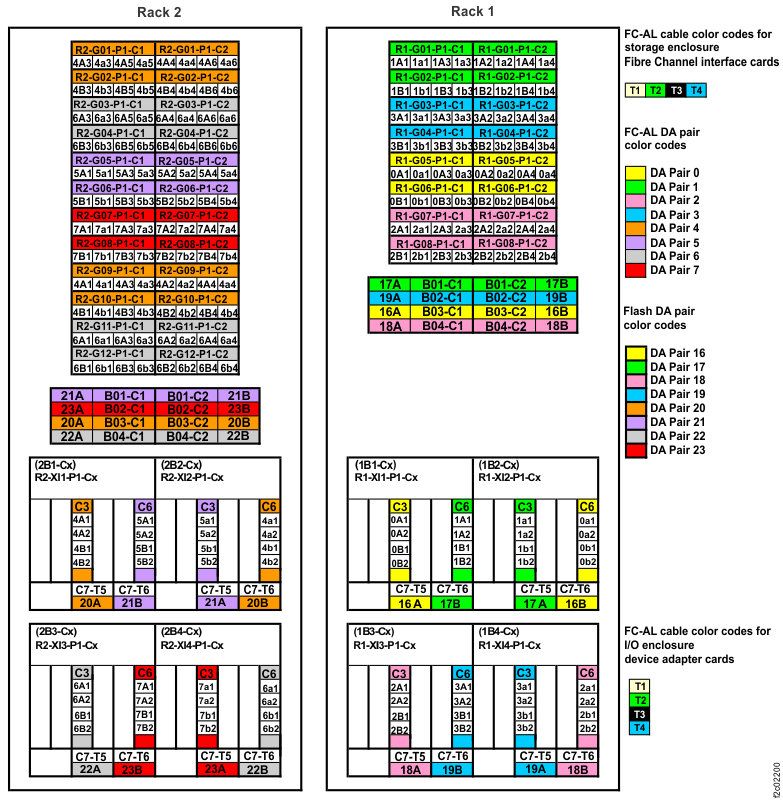 Note: Figure 1 shows single-phase models, PCIe storage interface cabling is identical for three-phase.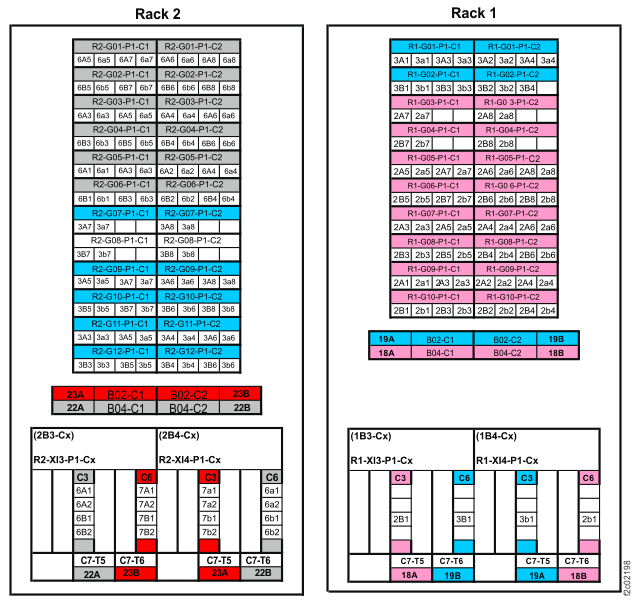
 Note: I/O enclosure PCIe storage interface card (locations C3 and C6) not shown.Note: The older generation I/O enclosure PCIe and PCN card might not include T3, T4, and T10 ports.