MAP1210 Displaying and repairing a serviceable event

The primary method to repair the storage facility is by using a serviceable event that will guide you through the repair. Serviceable events contain the information and history needed to manage the repair.
MAP1210 Section-1

Procedure

  1. Use the table to select your action:
    Table 1. Serviceable event views
    You are here to: Go to:
    View open serviceable events and details. Step 2
    View and repair an open serviceable event. Step 4
    View comments or service history of an open serviceable event. Step 5
    View serviceable events based on a search filter you define. This can be other than the default filter of Status = Open. Step 6
  2. View open serviceable events and details:
    1. From the navigation area, click Service Management.
    2. In the right work area, click Manage Serviceable Events. A window opens and displays a list of selection criteria.
    3. You can use the default criteria or modify the criteria for your needs. Click OK. The Serviceable Event Overview window opens.
    4. Select a serviceable event. Click Selected > View Details. A window opens and displays the details.
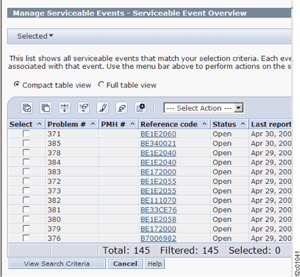
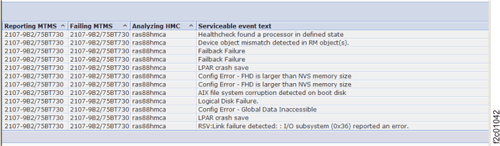
  3. The default table view for displaying the details is compact. See Figure 1. If you want to view the serviceable event text, click Full table view, and scroll to the right. See Figure 2.
    Figure 1. Window: Serviceable Events, Compact Table View
    Window: Serviceable Events, Compact Table View
    Figure 2. Window: Serviceable Events, Full Table View
    Window: Serviceable Events, Full Table View
  4. View and repair an open serviceable event.
    1. From the navigation area, click Service Management.
    2. In the right work area, click Manage Serviceable Events. A window opens and displays a list of selection criteria.
    3. You can use the default criteria or modify the criteria for your needs. Click OK. The Serviceable Event Overview window opens.
    4. Select a serviceable event. Click Selected > Repair. The guided process window opens.
  5. View comments or service history of an open serviceable event.
    1. From the navigation area, click Service Management.
    2. In the right work area, click Manage Serviceable Events. A window opens and displays a list of selection criteria.
    3. You can use the default criteria or modify the criteria for your needs. Click OK. The Serviceable Event Overview window opens.
    4. Select a serviceable event. Click Selected > View Details. A window opens and displays the details.
    5. Select Actions > View Comments or Actions > View Service History.
  6. View serviceable events based on a search filter that you define.
    1. From the navigation area, click Service Management.
    2. In the right work area, click Manage Serviceable Events. A window opens and displays a list of selection criteria.
    3. Modify the search criteria for your needs. Click OK.
    4. The Serviceable Event Overview window opens and displays the serviceable events that meet the search criteria.