MAP1250 Activating and deactivating the identify LEDs
MAP1250 Section-1
Procedure
Use Table 1 to
select your action:
| You are here to: | Go to: |
|---|---|
| Activate, deactivate, display state of a CEC or I/O enclosure identify LED. | MAP1250 Section-2 |
| Test all LEDs for a CEC enclosure and the
I/O enclosures it controls. Note: This also tests CEC enclosure control
panel display character segments.
|
MAP1250 Section-3 |
| All other storage enclosure/FRUs and rack power FRUs. | There are no utilities to manage these FRU LED indicators. Only the eServer™ CEC enclosure and I/O enclosure FRUs have LED utilities. |
MAP1250 Section-2
Before you begin
About this task
The system provides several LEDs that help identify various components, such as enclosures or field replaceable units (FRUs), in the system. For this reason, they are called Identify LEDs.
You
can activate or deactivate the following types of identify LEDs:
- Identify LED for an enclosure. If you want to add an adapter to a specific enclosure, you must know the machine type, model, and serial number (MTMS) of the enclosure. To determine whether you have the correct MTMS for the enclosure that needs the new adapter, you can activate the LED for an enclosure and verify that the MTMS corresponds to the enclosure that requires the new adapter.
- Identify LED for a FRU associated with a specified enclosure. If you want to hook up a cable to a specific I/O adapter, you can activate the LED for the adapter which is a field-replaceable unit (FRU), and then physically check to see where you should hook up the cable. This is especially useful when you have several adapters with open ports.
Procedure
To activate or deactivate an identify LED for an enclosure
or FRU, follow these steps:
- From the navigation area, click .
- From the bottom Task area, click . The Identify LED, Select Enclosure window opens and displays a list of enclosures and FRUs.
- Select an enclosure or FRU and click Activate LED or Deactivate LED, depending on whether you want to activate or deactivate the Identify LED.
MAP1250 Section-3
Before you begin
About this task
Procedure
- At the front of the affected
CEC enclosure, press the blue release tab
 to the left and pull the control panel
out to the service position. See Figure 1. When you are finished
with this procedure, carefully slide the control panel into the control
panel bay until it latches in place.
to the left and pull the control panel
out to the service position. See Figure 1. When you are finished
with this procedure, carefully slide the control panel into the control
panel bay until it latches in place. Figure 1. Moving the control panel to the service position Note: Model 961 is shown. Models 98x are similar.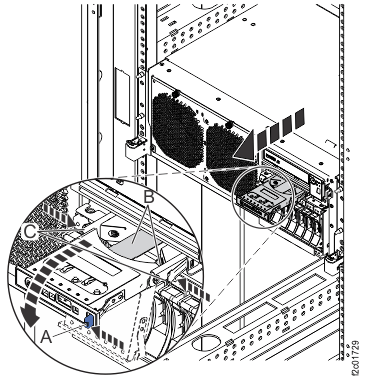
- At the CEC enclosure control
panel, press the Increment or Decrement buttons on the control panel
to display Panel Function Number 04 (displayed in upper left of display).
Press the Enter button to start the lamp test.
Figure 2. CEC enclosure control panel (Models 941, 951) 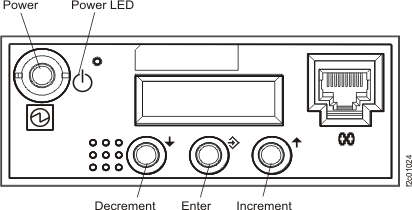
Figure 3. CEC enclosure control panel assembly (Model 961) 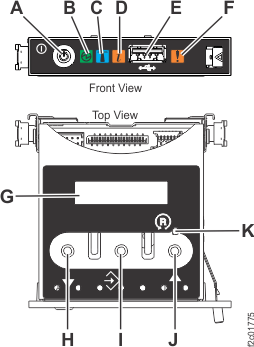
- H: Decrement button
- I: Enter button
- J: Increment button
Figure 4. CEC enclosure control panel assembly (Models 98x) 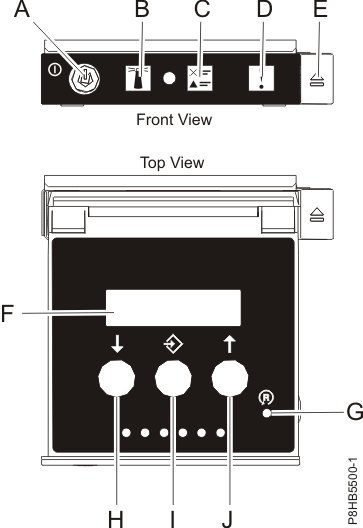
- H: Decrement button
- I: Enter button
- J: Increment button