MAP6010 Displaying the HMC MAC address for the customer connection
Use this procedure to help the customer determine the Media Access Control (MAC) address of the HMC port they connect to before the physical connection is made.
MAP6010 Section-1
About this task
- xSeries 335, 336 or 3550, go to MAP6010 Section-2, xSeries 335, 336, or 3550.
- ThinkPad laptop, go to MAP6010 Section-3, ThinkPad laptop.
- Model 98x management console (see Figure 7), go to MAP6010 Section-4, Model 98x management console.
MAP6010 Section-2, xSeries 335, 336, or 3550
About this task
- eth0 - port for DS8000 private network (not displayed)
- eth1 - port unused
- eth2 - port for customer connection
- eth3 - port for DS8000 private network (not displayed)
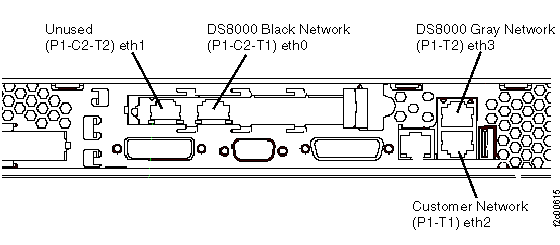
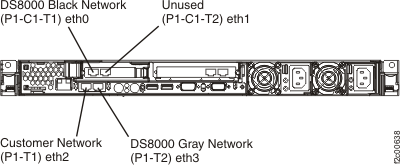
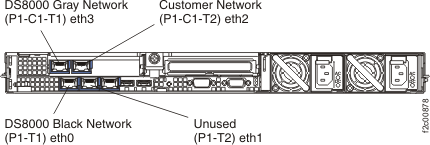
The HMC utility to display the LAN Adapters was modified to display only the properties for eth1 and eth2. eth0 and eth3 ports are automatically managed by the DS8000® network management processes during installation and FRU replacements.
MAP6010 Section-3, ThinkPad laptop
About this task
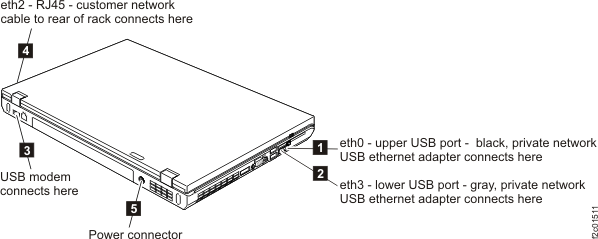
- eth0 - port for DS8000 private network (not displayed), USB ethernet adapter, USB cable connects to laptop USB port
- eth2 - port for customer connection, an extender cable runs to the rear of the rack to the customer connector
- eth3 - port for DS8000 private network (not displayed), USB ethernet adapter, USB cable connects to laptop USB port
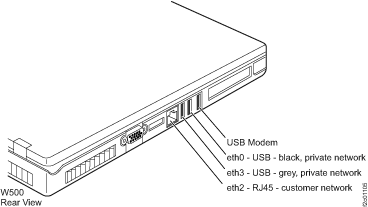
| Cable label | Laptop connection | Port | Use | Refer to |
|---|---|---|---|---|
| T3 or "MGMT CONSOLE" | rear RJ45 Ethernet | eth2 | customer network |  Figure 6 Figure 6 |
| T5 | left side, front USB | eth0 | private network, black |  Figure 6 Figure 6 |
| T4 | left side, rear USB | eth3 | private network, gray |  Figure 6 Figure 6 |
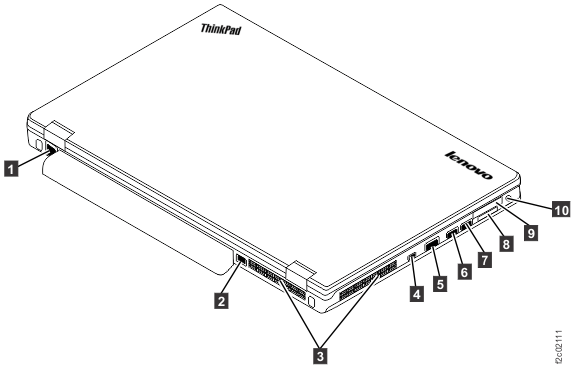
The HMC utility to display the LAN adapters was modified to display only the properties for eth1 and eth2. eth0 and eth3 ports are automatically managed by the DS8000 network management processes during installation and FRU replacements.
MAP6010 Section-4, Model 98x management console
About this task
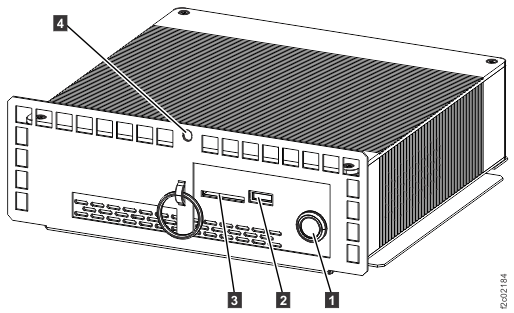
- eth0 - port 4, for DS8000 private (black) network (not displayed)
- eth2 - port 3, for customer connection, an extender cable runs to the rear of the rack to the customer connector
- eth3 - port 2, for DS8000 private (gray) network (not displayed)
- eth1 - port 6, USB to Ethernet adapter, with an extender cable runs to the rear of the rack to the customer connector
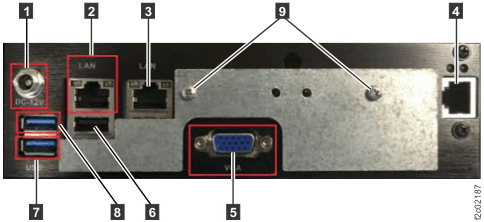
The management console utility to display the LAN adapters was modified to display only the properties for eth1 and eth2. The eth0 and eth3 ports are automatically managed by the DS8000 network management processes during installation and FRU replacements.