Exchange the I/O enclosure backplane assembly
Before you begin
 Use approved ESD procedures to prevent damage.
Attention:
- This procedure is not a stand-alone procedure. Customer disruption and damage to the hardware might occur when microcode and power boundaries are not in the proper conditions for this service action.
- If a serviceable event FRU repair directed you to this procedure, the microcode and power boundaries are already set.
- If a serviceable event FRU repair did not direct you to this procedure, see MAP1230 Replace a FRU without using a serviceable event.
Notes:
- All the cables and FRUs to be removed must be uniquely identified so they can be reinstalled correctly.
- If an installed earthquake resistance kit prevents you from accessing this FRU, refer to MAP1600.
About this task
Note: The I/O enclosure must be fully removed from the rack
for this procedure.
Remove the I/O enclosure backplane assembly
Before you begin
Note: You
need 5.5 mm and 8 mm sockets to remove hex head screws for this FRU.
Procedure
- At the front of the rack, for the I/O enclosure
being repaired, unplug the power input cable
 to each power supply. See Figure 1.
 Figure 1. I/O enclosure power supply, input power connectors 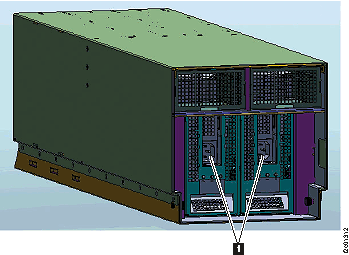
- Remove both power supplies.
- Remove the I/O power supply retention bracket by removing the screws on either side
of the bracket
 . See Figure 2.
Figure 2. I/O enclosure power supply retention bracket 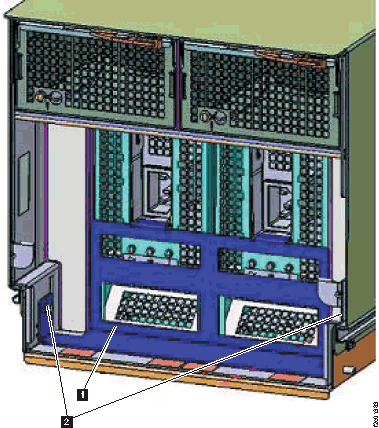
- Push down on the red release button beneath the input power connector.
See Figure 3.
Figure 3. I/O enclosure power supply, input power connector release button 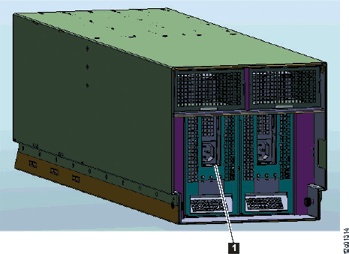
- Remove the I/O power supply retention bracket
- Remove both fan assemblies. See Figure 4.
- Unlatch the orange fan release lever in the upper right corner of the fan.
Then, use it to pull the fan assembly straight out from the I/O enclosure.
Figure 4. Removing the I/O enclosure fan 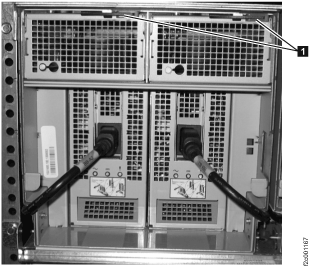
- Unlatch the orange fan release lever
- At the rear of the rack, unlatch and pull the I/O enclosure PCIe / SPCN card
out about 2.5 cm or 1 inch. See Figure 5.
You can leave the cables attached but you might need to unplug one or more cables to gain access to the blue lever latch.
Note: Undocking these cards will make it easier to slide the I/O enclosure planar assembly out the front later in this procedure.Figure 5. PCIe / SPCN card latch 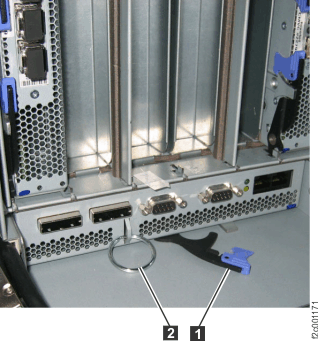
- Unlatch , as shown in Figure 6 (Model 941)
and Figure 7 (Model
951), and slide each device adapter card and host adapter card
out about 2.5 cm or 1 inch. Leave the cables attached. Note: Undocking these cards will make it easier to slide the I/O enclosure planar assembly out the front later in this procedure.
Figure 6. I/O enclosure device adapter card, copper (4-port), blue retention levers 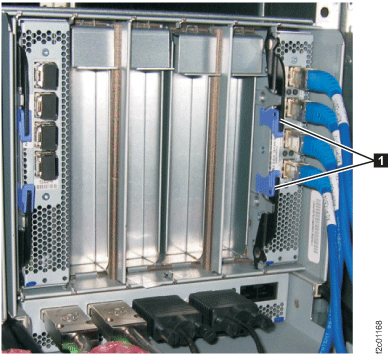
Figure 7. I/O enclosure device adapter card, optical (4-port) blue retention levers 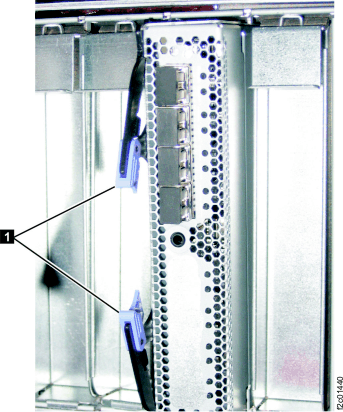
- At the front of the rack, remove the hold down
bracket below the affected I/O enclosure by removing the two screws
at either end of the bracket. for the upper enclosures (rB1, rB2)
or for the lower enclosures (rB3, rB4).
See Figure 8.
Figure 8. I/O enclosure hold down brackets 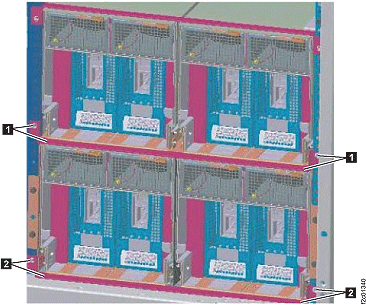
- Use the brackets to pull the planar assembly out. See Figure 9. Note: The rubber air seals can make the planar assembly hard to pull out.
Figure 9. I/O enclosure backplane assembly screws and brackets details 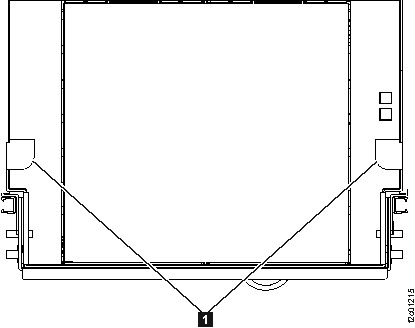
Install the I/O enclosure backplane assembly
Procedure
- At the front of the rack slide the I/O enclosure backplane
assembly in by pushing on the two brackets , as shown in Figure 9.
- Install the hold down bracket below the affected
I/O enclosure, for the upper enclosures (rB1, rB2)
or for the lower enclosures (rB3, rB4).
See Figure 8.
- Reinstall the I/O power supply retention bracket , as shown in Figure 2.