MAP4360 Codes displayed by the CEC enclosure control panel

This MAP provides guidance on how to interpret and handle indications and codes on the CEC enclosure control panel.

About this task

The CEC enclosure control panel displays various types of codes that indicate the status of the individual CEC enclosure during power on and IML. Some are normal status and progress indications that change every few seconds. These same codes can indicate a problem if the system appears to hang with the code still displayed. Other codes indicate error conditions that will not prevent the code load from completing but will create a problem. Still other codes indicate conditions that prevent the cluster from completing its power on or code load.

MAP4360 Section-1

Procedure

  1. Use Service Management > Manage Serviceable Events to check if you have a serviceable event to repair for the failing CEC enclosure. Did you find a serviceable event to repair?
    • Yes, repair the problem using the serviceable event.
    • No, continue with the next step.
  2. Is the affected CEC in a model 961 (8205-E6C or 8205-E6D) or Models 98x?
    • Yes, continue with step 3.
    • No, continue with step 4.
  3. Pull the CEC enclosure control panel out to the service position.
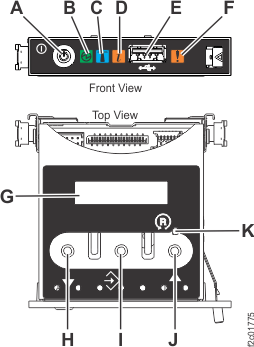
    1. For Model 961, press the blue release tab  A  to the left and pull the control panel out to the service position. See Figure 1. After you complete this procedure, carefully slide the control panel into the control panel bay until it latches in place.
      Figure 1. Accessing the control panel (Model 961)
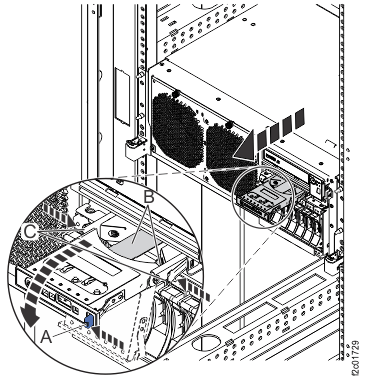
      Removing the control panel
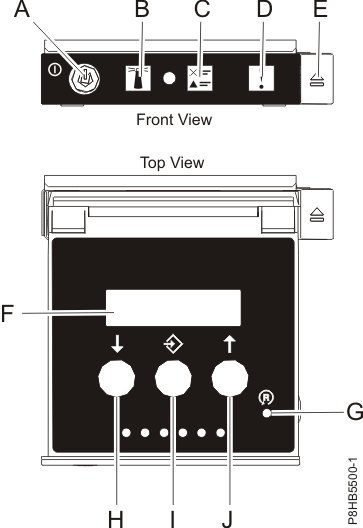
    2. For model 98x, at the front of the affected CEC enclosure, press the blue eject button  E  and pull the control panel out to the service position. See Figure 2. After you complete this procedure, carefully slide the control panel into the control panel bay until it latches in place.
      Figure 2. Control panel LEDs
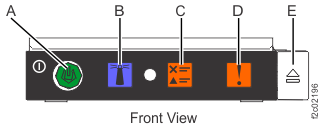
      Control panel LEDs
  4. Observe the CEC enclosure control panel. Is an 8-character code displayed in the format as shown in Figure 3?
    Figure 3. CEC enclosure control panel example display
    CEC control panel example display
  5. Observe the CEC enclosure control panel. Is the display format as shown in Figure 4 with a 01 on the upper left?
    Figure 4. CEC enclosure control panel example display
    CEC control panel example display
  6. Observe the CEC enclosure control panel. Does a 2-digit numeric code other than 01 appear in the upper left, as shown in Figure 5?
    Figure 5. CEC enclosure control panel example display
    CEC control panel example display
    Note: There may be text or characters in other positions on the display.

MAP4360 Section-2

About this task

This section verifies that the display indicates a normal state and, if necessary, provides guidance on how to correct the system state.

Procedure

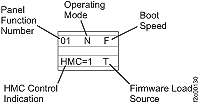
  1. Observe the CEC enclosure control panel and compare the indications to Figure 6.
    Figure 6. CEC enclosure control panel indications
    CEC control panel indications

    Are the indications as shown in Figure 6?

    • Yes, this is normal. No further action is required.
    • No, continue with the next step.
  2. Is the only difference that the firmware load source shows P (permanent)?
    • Yes, this is normal. No further action is required.
    • No, continue with the next step.
  3. Use Table 1 to identify the abnormal indication and take the action listed.
    Table 1. CEC enclosure control panel indicators
    Control Panel Indication Action
    Panel Function Number is not 01 Go to MAP4360 Section-3.
    Operating mode is not N Continue with step 4 in this section.
    Power On Speed is not F Continue with step 4 in this section.
    HMC Control = 0 Continue with step 5 in this section.
  4. Correct the Operating mode or System Boot Speed settings using Advanced System Management Interface (ASMI). Refer to MAP6F00 Accessing the ASMI.
    1. Log on to ASMI with userid: admin and password: admin2107. If the login fails, log in as admin with a password of admin210.
    2. Select Power/Restart Control / Power On/Off System.
    3. Correct the System Operating mode or System Boot Speed settings and then click Save Settings.
      Note: Do not click Save Settings and Power Off as this could cause system disruption.
    4. This ends the procedure.
  5. HMC Control = 0 indicates that the HMC is not controlling this CEC enclosure. If the HMC appears to be functional, then go to MAP7000 Entry point For storage facility private network problems; otherwise, go to MAP6000 Entry point for analyzing management console problems.

MAP4360 Section-3

About this task

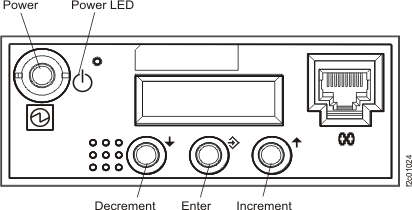
The CEC enclosure control panel is not set to function 01. Refer to Figure 7, (Models 941 and 951), Figure 8, (Model 961), or Figure 9, (Models 98x), and perform the following steps to reset the panel to function 01.
Figure 7. CEC enclosure control panel (Models 941 and 951)
CEC enclosure control panel
In Figure 8 and Figure 9, the following buttons provide the actions noted:
  • H: Decrement
  • I: Enter
  • J: Increment
Figure 8. CEC enclosure control panel assembly (Model 961)
CEC enclosure control panel assembly
Figure 9. CEC enclosure control panel assembly (Models 98x)
Control panel LEDs (Models 98x)

Procedure

  1. Press the Increment or Decrement buttons until 01 is displayed in the upper left corner of the control panel display.
    Note: If the Function number in the upper left corner of the display does not change, this might indicate that a panel function was started but not completed. Because the effect is not predictable, do not continue with step 2.
  2. Were you able to step to Function 01 by pressing the Increment or Decrement buttons?