Exchange the CEC enclosure control panel
Before you begin
 Use approved ESD procedures to prevent damage.
Attention:
- This procedure is not a stand-alone procedure. Customer disruption and damage to the hardware might occur when microcode and power boundaries are not in the proper conditions for this service action.
- If a serviceable event FRU repair directed you to this procedure, the microcode and power boundaries are already set.
- If a serviceable event FRU repair did not direct you to this procedure, see MAP1230 Replace a FRU without using a serviceable event.
Notes:
- All the cables and FRUs to be removed must be uniquely identified so they can be reinstalled correctly.
- If an installed earthquake resistance kit prevents you from accessing this FRU, refer to MAP1600.
Remove the CEC enclosure control panel
Procedure
- Use the CEC enclosure front and rear
blue identify LEDs to determine the CEC enclosure to be repaired.
Both blue LEDs should be solidly lit.
- CEC control panel blue identify LED
 , as shown in Figure 1
 - CEC enclosure rear blue identify LED
 , as shown in Figure 2
Note: If both the front and rear CEC enclosure identify LEDs are not lit, use the location code listed in the serviceable event FRU list. See MAP1245 Finding FRUs by using location codes.Figure 1. CEC enclosure control panel assembly (Model 961) 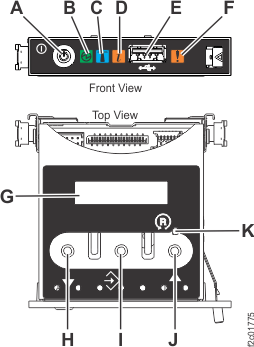
Figure 2. CEC enclosure rear LED indicators 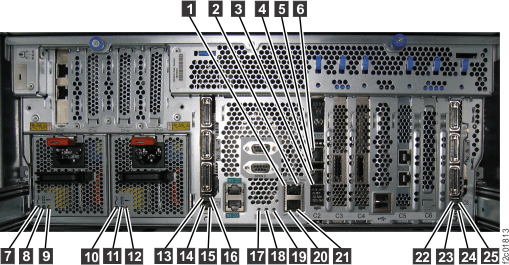
- CEC control panel blue identify LED
- Verify the CEC enclosure is in the
power-off state. See Figure 3.
- At the rear of the CEC enclosure, view both CEC enclosure power supply DC GOOD LEDs.
- Are both DC GOOD (output) LEDs
 blinking?
 - Yes, continue with the next step.
- No, do not continue with this FRU replacement. Go to MAP4841 CEC enclosure fails to power off during service processor repair (Models 961, 98x).
Figure 3. CEC enclosure power supply LEDs (Model 961) 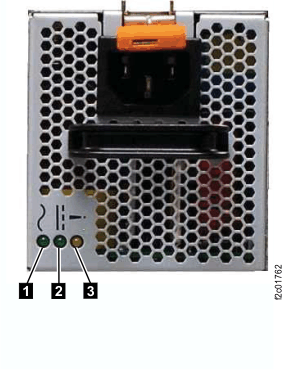
- Disconnect the power cables (E1-J1 and
E2-J1) from the CEC with the DC Good LEDs blinking. See Figure 4. Note: The CEC enclosure power supply LEDs continue to blink for up to 20 seconds while internal power is discharged.
- Each power cable is looped once around the CEC enclosure power supply handle and secured with a cable tie.
- Remove the cable tie, unplug the cable and unwrap it from the handle.
Figure 4. Location codes for the CEC enclosure (rear view) (Model 961) 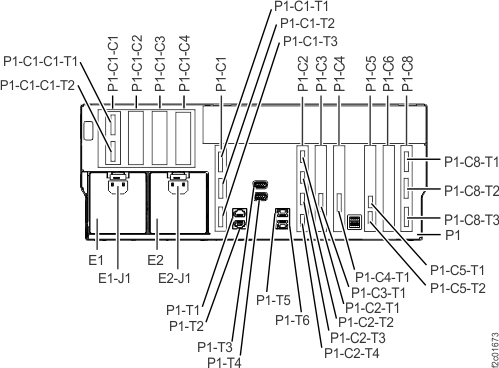
- Observe the CEC enclosure control panel
green power present icon
 . See Figure 5.
- If it is off, go to the next step.
- If it is slow blinking, the CEC enclosure is still in the power-off state. DO NOT CONTINUE. Ensure that you have unplugged the power cables.
Figure 5. CEC enclosure control panel 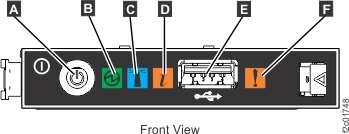
- At the front of the CEC enclosure,
remove the two screws
 (if present) that secure the CEC enclosure to the rack. See Figure 6.
 Figure 6. Preparing the CEC enclosure for service position 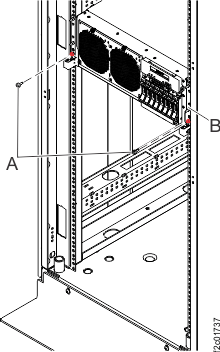
- Pull the CEC enclosure out about
20 centimeters (8 inches). Hold the CEC enclosure release latches down on both the left and right sides,
and pull the CEC partway out. See Figure 7.
Figure 7. Pulling the CEC enclosure out to the service position 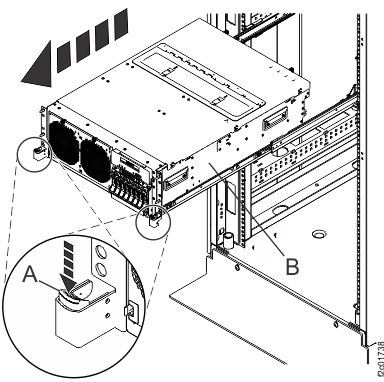
- Remove the CEC enclosure front cover.
See Figure 8.
Figure 8. Removing the CEC enclosure front cover 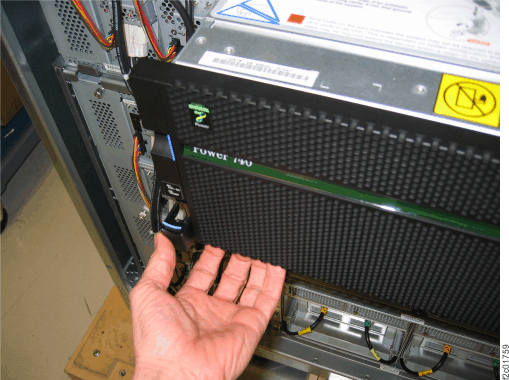
- Remove the control panel. See Figure 9.
- Press the blue release tab to the left and pull the control panel
out to the service position.
- Remove the control panel by pressing the locking tabs located on either side of the panel,
grasping the edges of the panel, and pulling the panel out of its
bay.
- Disconnect the control-panel signal cable and its related USB cable from the back of the control
panel.
Figure 9. Removing the control panel 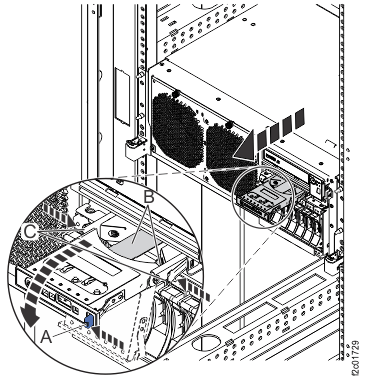
- Press the blue release tab
Install the CEC enclosure control panel
Procedure
- Connect the control-panel signal cable and its related USB cable to their ports in the back of the
control panel. See Figure 9.
- Carefully slide the control panel into the control panel
bay until you feel the locking tabs lock in place. See Figure 9.
- Connect the power cables (E1-J1, E2-J1)
to both CEC enclosure power supplies. See Figure 10.
- Loop the power cable around the power supply handle and connect it.
- Secure the cable with the cable tie.
Is the DC Good green LED blinking on one or both power supplies?
- Yes, go to the next step.
- No, ensure the power cables are properly connected. If no cable problem is found, call the next level of support.
Figure 10. CEC enclosure power supply cable loops 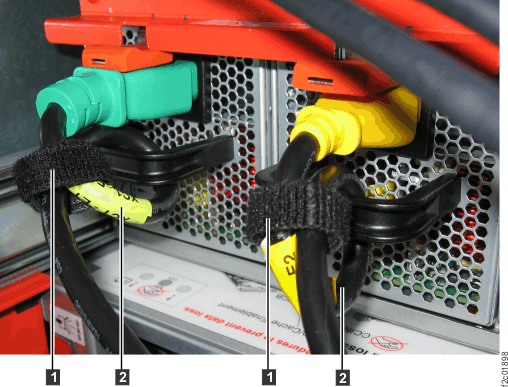
- Wait up to 5 minutes for the CEC
enclosure control panel green power present LED to slow blink, as shown in Figure 1. Note: This ensures the CEC enclosure is in the power-off state.
Is the green LED blinking?
- Yes, go to the next step.
- No, ensure the CEC enclosure power supplies are fully seated. The possible failing FRUs are the CEC enclosure system backplane, I2C interface card and cables, and control panel. You can also call the next level of support.