Exchange the management console main cable bundle
Before you begin
 Use approved ESD procedures to prevent damage.
Attention:
- This procedure is not a stand-alone procedure. Customer disruption and damage to the hardware might occur when microcode and power boundaries are not in the proper conditions for this service action.
- If a serviceable event FRU repair directed you to this procedure, the microcode and power boundaries are already set.
- If a serviceable event FRU repair did not direct you to this procedure, see MAP1230 Replace a FRU without using a serviceable event.
Notes:
- All the cables and FRUs to be removed must be uniquely identified so they can be reinstalled correctly.
- If an installed earthquake resistance kit prevents you from accessing this FRU, refer to MAP1600.
Remove the management console main cable bundle
Procedure
- Disconnect the power cable from the connectors on PJA E41
and PJA E42. See Figure 1.
Figure 1. Power junction assembly (PJA) locations (models 980, 981, 982) 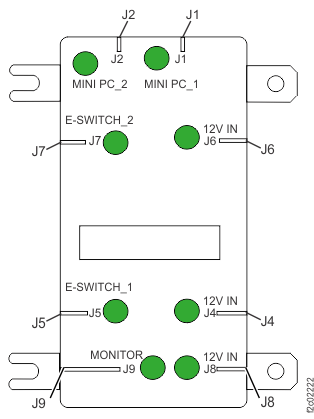 Note: The PJA shown in Figure 1 is for models 980, 981, and 982. J6 and J8 are not present on the PJA for models 984, 985, 986, and 988.
Table 1. Management console MC1 (left, primary) connections Index Management console connection Remote connection Remote details Remarks 1 12 V power PJA E41-J1 Upper PJA (yellow) "Y" cable to E41 and E42 1 12 V power PJA E42-J1 Lower PJA (green) "Y" cable to E41 and E42 2 eth3 (gray) SW2-T8 Lower switch (gray) Internal network 3 eth2 (customer) MC1 customer LAN Upper LAN Customer LAN 4 eth0 (black) SW1-T8 Upper switch (black) Internal network 5 VGA (video) Front display patch panel Upper VGA 6 USB (modem)1 MC1 modem (if equipped) Upper modem USB (Ethernet eth1)1 Second MC1 customer LAN (if equipped) Upper USB to Ethernet adapter 7 USB (keyboard) Front display patch panel Upper USB 8 (Not used) Note:1. Connector is used for either a modem or a second customer LAN connection.
Table 2. Management console MC2 (right, primary) connections Index Management console connection Remote connection Remote details Remarks 1 12 V power PJA E41-J2 Upper PJA (yellow) "Y" cable to E41 and E42 1 12 V power PJA E42-J2 Lower PJA (green) "Y" cable to E41 and E42 2 eth3 (gray) SW2-T7 Lower switch (gray) Internal network 3 eth2 (customer) MC2 customer LAN Lower LAN Customer LAN 4 eth0 (black) SW1-T7 Upper switch (black) Internal network 5 VGA (video) Front display patch panel Lower VGA 6 USB (modem)1 MC2 modem (if equipped) Lower modem USB (Ethernet eth1)1 Second MC2 customer LAN (if equipped) Lower USB to Ethernet adapter 7 USB (keyboard) Front display patch panel Lower USB 8 (Not used) Note:1. Connector is used for either a modem or a second customer LAN connection.
Figure 2. Model 98x management console cable connections (rear) 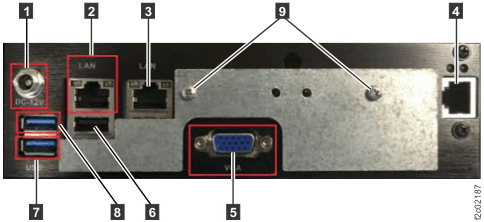
Figure 3. Model 98x (not 983) management console (front); 983 management console is similar. 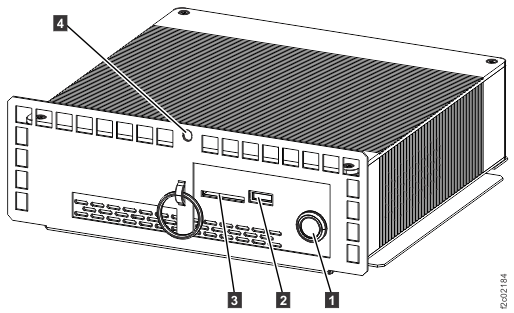
Figure 4. 8-port Ethernet switch port locations, Model 98x Note: Upper switch SW1 is "black" network; lower switch SW2 is "gray" network.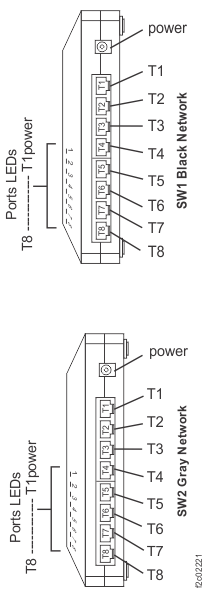
-
At the front of the rack, remove the screw
 from the management console
tray. See Figure 3. Pull the tray out to access the rear of the
management console.
from the management console
tray. See Figure 3. Pull the tray out to access the rear of the
management console.
-
At the rear of the management console, disconnect all the power and communication cables except
for video
 and keyboard
 . See Figure 2 and Table 1 or
Table 2 for the management console you are repairing.
. See Figure 2 and Table 1 or
Table 2 for the management console you are repairing.
Install the management console main cable bundle
Procedure
-
The management console should automatically power on and after several minutes display the
login screen. Login, display, and repair any new open serviceable events that are related to the
laptop.
 . See
. See