Exchange the small form factor management console

Before you begin

Icon for electrostatic discharge wrist strapUse approved ESD procedures to prevent damage.

Attention:
  • This procedure is not a stand-alone procedure. Customer disruption and damage to the hardware might occur when microcode and power boundaries are not in the proper conditions for this service action.
  • If a serviceable event FRU repair directed you to this procedure, the microcode and power boundaries are already set.
  • If a serviceable event FRU repair did not direct you to this procedure, see MAP1230 Replace a FRU without using a serviceable event.
Notes:
  • All the cables and FRUs to be removed must be uniquely identified so they can be reinstalled correctly.
  • If an installed earthquake resistance kit prevents you from accessing this FRU, refer to MAP1600.
  • The entire management console is a single FRU. There are no parts to transfer between the old and new management console except for the rear cover plate.
  • The management console FRU is pre-loaded with a base level of LIC. After the management console is exchanged, update the LIC bundle on the new management console by using the DVD drive. The DVD drive is stored in the document enclosure.

Remove the management console

Procedure

  1. If this storage facility does not have a second functioning management console, the customer cannot manage their storage while you do this procedure. Ensure that they are aware of this condition.
  2. Shut down the management console. See MAP6640 Shutting down, restarting, and logging off the management console for details.
  3. At the front of the management console, loosen the screw  4  and carefully pull the tray out of the rack. See Figure 1.
    Figure 1. Model 98x (not 983) management console (front); 983 management console is similar.
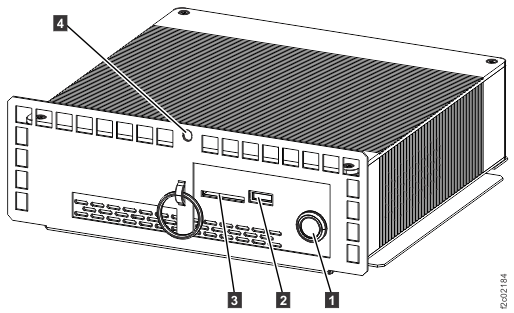
    HMC management console (front)
  4. At the rear of the management console, disconnect the power and communications cables. See Table 1 and Figure 2.
    Attention: Ensure that the power cable does not short to metal objects such as the management console tray or system rack.
    Table 1. Small form factor management console connections
    Index Management console connection
    1 Power
    2 Ethernet eth3 (gray)
    3 Ethernet eth2 (customer)
    4 Ethernet eth0 (black)
    5 VGA to keyboard/monitor patch panel
    6 USB-2 to modem or USB Ethernet eth1 (optional customer) (cable still exists if both modem and Ethernet adapter are not present)
    7 USB-3 to keyboard/monitor patch panel
    8 Not used
    Figure 2. Model 98x management console cable connections (rear)
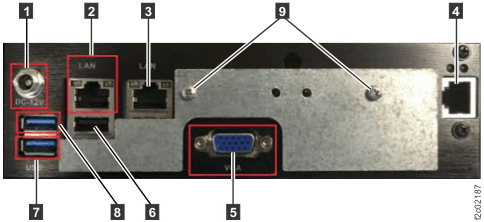
    Model 98x management console cable connections (rear)

Install the management console

Procedure

  1. Transfer the cover plate from the old management console to the new management console. The plate is secured by two screws  9  that are inserted into unused connectors in the management console. See Figure 2.
  2. If the management console that you are replacing contains an SDHC memory card in the media card reader slot ( 3 , Figure 1), transfer it to the new management console.
  3. Reconnect all cables except power and Ethernet eth3 and eth0. Power is connected in the next step. Ethernet eth0 and eth3 are connected after the network addresses are set on the new management console.
  4. Reconnect the power cable.
  5. Install the new management console on its tray in the rack and tighten the screw  4 . See Figure 1.
    Note: Slide the tray out again to connect the Ethernet cables during the LIC bundle reload.
  6. Connect the portable DVD drive to the USB port  2 . See Figure 1.
  7. Update the management console LIC bundle as needed. Refer to MAP6200 Reloading the management console LIC bundle.
    Note: The LIC bundle is updated in all cases. The LIC bundle is reloaded only if the new management console does not boot, or when directed by next level of support.
  8. Ensure that the management console tray is secured in the rack with the screw  4  (Figure 1). Return the DVD drive to the document enclosure and return to this procedure.
  9. If you cannot access the management console after reloading the LIC bundle, go to MAP6060 Management console login and login problems at the management console server.
  10. Test the management console to ensure that all connections are functioning.
    1. Use the network topology tool to ensure that the gray and black private network connections are functioning. See MAP7001 Using the network topology tool for details.
    2. Display open serviceable events that need repair. If there are serviceable events that are related to this HMC, or private network timeout problems that were created when you replaced this unit, close them.
    3. Run the storage facility status (end of call) option. See MAP1100 View storage facility state (end of call) for details.
    4. If the management console is configured for remote access, test it. Select Service Management > Manage Outbound Connectivity > Configure > Internet > Test.
    5. Ask the customer to test the access of the application or method that they use to connect to the Storage Manager application in the management console.