Exchange the power supply, 12V
Before you begin
Use approved ESD procedures to prevent damage.
Attention:
- This procedure is not a stand-alone procedure. Customer disruption and damage to the hardware might occur when microcode and power boundaries are not in the proper conditions for this service action.
- If a serviceable event FRU repair directed you to this procedure, the microcode and power boundaries are already set.
- If a serviceable event FRU repair did not direct you to this procedure, see MAP1230 Replace a FRU without using a serviceable event.
Notes:
- All the cables and FRUs to be removed must be uniquely identified so they can be reinstalled correctly.
- If an installed earthquake resistance kit prevents you from accessing this FRU, refer to MAP1600.
DANGER
Hazardous
voltage, current, or energy levels are present inside of a component
to which this label is attached. (L001)

Remove the power supply, 12V Section-1
Procedure
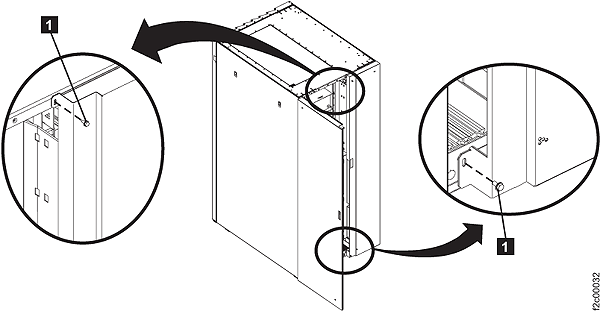
- Open the left rear cover. Remove the two screws
that secure the right rear cover (trained
service personnel access area only).
Open the right rear cover. (Figure 1)Note: The screws must be reinstalled when the cover is closed to prevent customer access.Figure 1. Removing retaining screws on right rear machine cover 
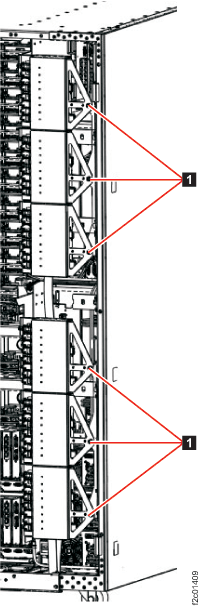
- Unfasten
and then rotate all six power distribution
units (PDUs) away from the rear of the rack. Figure 2. Power distribution units in normal position (rack rear view) 
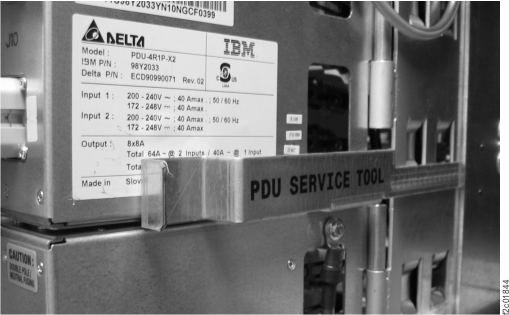
- Use two PDU service tools to hold the PDUs in the open
position. (Figure 3 and Figure 4).
- The PDU service brackets are stored in the Rack-1 front upper left documents enclosure.
- The upper three PDUs swing out as a group because they
are held together by a removable PDU alignment bracket.
The lower three PDUs are similar. - The PDU service tool should be installed on the middle PDU of each group of three.
- The PDU service tool bottom tab
is inserted between the upper and
lower PDUs. - The PDU service tool fingers
and
straddle the PDU support bracket.
- Figure 4 shows the tool properly installed. The tool is delicate, do not put unnecessary force on the PDU group.
Figure 3. PDU service tool 
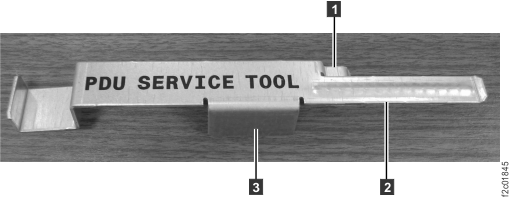
Figure 4. PDU service tool installed 
- A failure of this FRU is not isolated by code, it is only
isolated by a visual symptom.
- You should have been sent here by MAP2730 Visual symptoms for Ethernet switch tray (switches, fans, power junction assemblies) (Model 961) that isolated the problem to the power supply, 12V, as shown in Figure 5.
- This MAP repeats some of the isolation to ensure the correct power supply, 12V, is replaced.
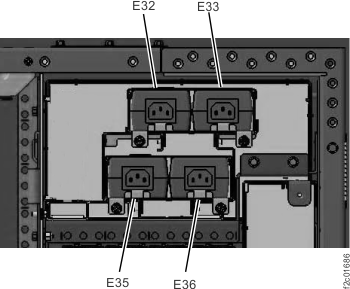
- There are four power supplies, 12V (E32, E33, E35, E36) that work in parallel to provide continuous power to the Ethernet switches and Ethernet tray fans.
- The power supplies are at the upper right rear of Rack-1.
- Each power supply receives power from a power distribution unit (PDU) at the rear of the rack.
Figure 5. Power supply, 12V (Ethernet switch tray fans, Ethernet switches) locations, rear upper right of rack 
- Determine the correct power supply, 12V, to be replaced.
- At the rear of the rack on the Ethernet tray, locate both power junction assemblies (PJA), E41 and E42, as shown in Figure 6 and Figure 7.
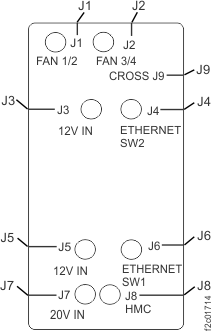
- Observe the J3 and J5 LED indicators on both PJAs, as shown in Figure 6 and Figure 7.
- Use Table 1 to determine the LEDs condition and action.
Table 1. Power supply, 12V cables PJA E41-J3 input power LED PJA E41-J5 input power LED PJA E42-J3 input power LED PJA E42-J5 input power LED Action On On On On Not failing, exit this procedure. Off On On On Go to Remove the E32 power supply, 12V Section-2 On Off On On Go to Remove the E33 power supply, 12V Section-3 On On Off On Go to Remove the E35 power supply, 12V Section-4 On On On Off Go to Remove the E36 power supply, 12V Section-5 Off Off Off Off There are multiple failures. If there are no open related serviceable events, go to MAP2730 Visual symptoms for Ethernet switch tray (switches, fans, power junction assemblies) (Model 961). Figure 6. Ethernet switch tray locations (Model 961, rear of rack version 1) 
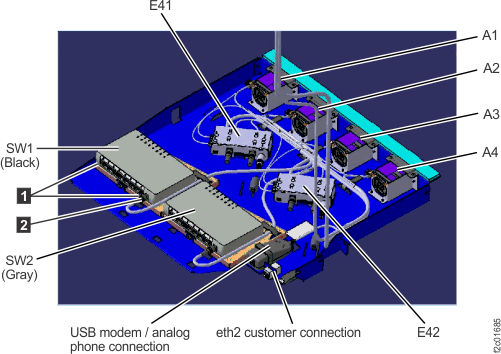
Figure 7. Ethernet switch tray locations (Model 961, rear of rack version 2) 
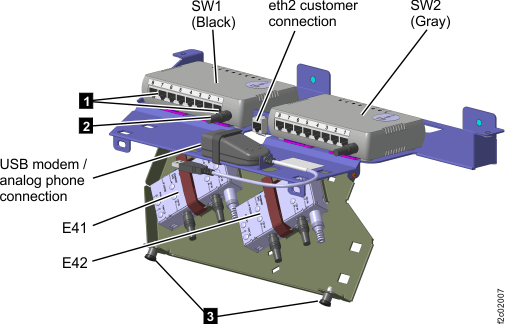
Figure 8. Power junction assembly (PJA) locations 
Remove the E32 power supply, 12V Section-2
Procedure
- The PJA E41-J3 input power LED is off.
- Before replacing the power supply, ensure the problem is
not external to the power supply.
- Refer to Figure 9 for the E32 power supply.
- Ensure the PDU E25-J5 output power good LED indicator is lit. If it is off, do not replace the power supply, instead go to MAP2710 Power distribution unit (PDU) isolation (Models 961, 96E).
- Ensure the E32 power supply input cable is properly connected.
- Ensure the power supply cable is properly connected to the PDU E25-J5 connector.
- Ensure the power supply cable is properly connected to the PJA E41-J3 connector.
- If the cables are properly connected, go to the next step.
- If the cables are not properly connected, reconnect them now and then return to Remove the power supply, 12V Section-1, step 2.
Figure 9. Ethernet tray cabling 
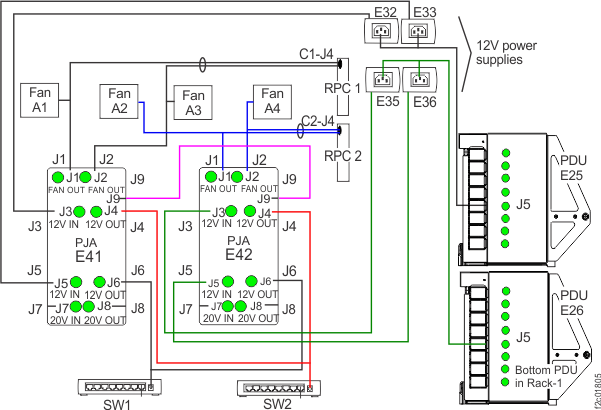
- Do the following steps to remove the power supply.
- You will not use the normal management console parts exchange GUI screens process to replace this FRU. Instead you will you the this procedure to replace and verify the new power supply.
- Lift up on the blue tab and slide the E32 power supply and bracket out of the power supply enclosure.
- Remove the hook-and-loop fastener to free the power supply from the bracket.
- Disconnect the power supply input cable from the power
supply. Note: This cable is a "Y cable" and it also supplies input power to the E33 power supply.
- Temporarily place the power supply back in the power supply enclosure slot.
- Disconnect the power supply cable at the PJA E41-J3 connector.
- Unfasten the cable ties as needed and remove the cable and power supply from the rack.
- Go to Install the power supply, 12V.
Remove the E33 power supply, 12V Section-3
Procedure
- The PJA E41-J5 input power LED is off.
- Before replacing the power supply, ensure the problem is
not external to the power supply.
- Refer to Figure 9 for the E33 power supply.
- Ensure the PDU E25-J5 output power good LED indicator is lit. If it is off, do not replace the power supply, instead go to MAP2710 Power distribution unit (PDU) isolation (Models 961, 96E).
- Ensure the E33 power supply input cable is properly connected.
- Ensure the power supply cable is properly connected to the PDU E25-J5 connector.
- Ensure the power supply cable is properly connected to the PJA E41-J5 connector.
- If the cables are properly connected, go to the next step.
- If the cables are not properly connected, reconnect them now and then return to Remove the power supply, 12V Section-1, step 2.
- Do the following steps to remove the power supply.
- You will not use the normal management console parts exchange GUI screens process to replace this FRU. Instead you will you the this procedure to replace and verify the new power supply.
- Lift up on the blue tab and slide the E33 power supply and bracket out of the power supply enclosure.
- Remove the hook-and-loop fastener to free the power supply from the bracket.
- Disconnect the power supply input cable from the power
supply. Note: This cable is a "Y cable" and it also supplies input power to the E32 power supply.
- Temporarily place the power supply back in the power supply enclosure slot.
- Disconnect the power supply cable at the PJA E41-J5 connector.
- Unfasten the cable ties as needed and remove the cable and power supply from the rack.
- Go to Install the power supply, 12V.
Remove the E35 power supply, 12V Section-4
Procedure
- The PJA E42-J3 input power LED is off.
- Before replacing the power supply, ensure the problem is
not external to the power supply.
- Refer to Figure 9 for the E35 power supply.
- Ensure the PDU E26-J5 output power good LED indicator is lit. If it is off, do not replace the power supply, instead go to MAP2710 Power distribution unit (PDU) isolation (Models 961, 96E).
- Ensure the E35 power supply input cable is properly connected.
- Ensure the power supply cable is properly connected to the PDU E26-J5 connector.
- Ensure the power supply cable is properly connected to the PJA E42-J3 connector.
- If the cables are properly connected, go to the next step.
- If the cables are not properly connected, reconnect them now and then return to Remove the power supply, 12V Section-1, step 2.
- Do the following steps to remove the power supply.
- You will not use the normal management console parts exchange GUI screens process to replace this FRU. Instead you will you the this procedure to replace and verify the new power supply.
- Lift up on the blue tab and slide the E35 power supply and bracket out of the power supply enclosure.
- Remove the hook-and-loop fastener to free the power supply from the bracket.
- Disconnect the power supply input cable from the power
supply. Note: This cable is a "Y cable" and it also supplies input power to the E36 power supply.
- Temporarily place the power supply back in the power supply enclosure slot.
- Disconnect the power supply cable at the PJA E42-J3 connector.
- Unfasten the cable ties as needed and remove the cable and power supply from the rack.
- Go to Install the power supply, 12V.
Remove the E36 power supply, 12V Section-5
Procedure
- The PJA E42-J5 input power LED is off.
- Before replacing the power supply, ensure the problem is
not external to the power supply.
- Refer to Figure 9 for the E36 power supply.
- Ensure the PDU E26-J5 output power good LED indicator is lit. If it is off, do not replace the power supply, instead go to MAP2710 Power distribution unit (PDU) isolation (Models 961, 96E).
- Ensure the E36 power supply input cable is properly connected.
- Ensure the power supply cable is properly connected to the PDU E26-J5 connector.
- Ensure the power supply cable is properly connected to the PJA E42-J5 connector.
- If the cables are properly connected, go to the next step.
- If the cables are not properly connected, reconnect them now and then return to Remove the power supply, 12V Section-1, step 2.
- Do the following steps to remove the power supply.
- You will not use the normal management console parts exchange GUI screens process to replace this FRU. Instead you will you the this procedure to replace and verify the new power supply.
- Lift up on the blue tab and slide the E36 power supply and bracket out of the power supply enclosure.
- Remove the hook-and-loop fastener to free the power supply from the bracket.
- Disconnect the power supply input cable from the power
supply. Note: This cable is a "Y cable" and it also supplies input power to the E35 power supply.
- Temporarily place the power supply back in the power supply enclosure slot.
- Disconnect the power supply cable at the PJA E42-J5 connector.
- Unfasten the cable ties as needed and remove the cable and power supply from the rack.
- Go to Install the power supply, 12V.
Install the power supply, 12V
Procedure
- Temporarily place the new power supply in the power supply enclosure slot.
- Route and connect the power supply output cable to the PJA J3 or J5 connector.
- Remove the new power supply from the enclosure slot and connect the power supply input cable to the power supply.
- Install the new power supply in the bracket and secure with the hook-and-loop fastener.
- Slide the power supply bracket into the enclosure slot and ensure it latches in place.
- Are the PJA J3 and J5 LED indicators lit?
- Yes, go to the next step.
- No, go to MAP2730 Visual symptoms for Ethernet switch tray (switches, fans, power junction assemblies) (Model 961).
- Ensure the power supply cables are properly fastened.
- Display open serviceable events to ensure no related problems occurred during this parts exchange.
- Remove the upper and lower PDU service tools and return them to the document enclosure (front upper left of Rack-1).
- Rotate and fasten the PDUs to the closed position.
- Close the right rear cover and reinstall the two security screws that prevent customer access. Then close the left rear cover.
- Exit this procedure.