Exchange the power supply, 20V

Before you begin

Icon for electrostatic discharge wrist strapUse approved ESD procedures to prevent damage.

Attention:
  • This procedure is not a stand-alone procedure. Customer disruption and damage to the hardware might occur when microcode and power boundaries are not in the proper conditions for this service action.
  • If a serviceable event FRU repair directed you to this procedure, the microcode and power boundaries are already set.
  • If a serviceable event FRU repair did not direct you to this procedure, see MAP1230 Replace a FRU without using a serviceable event.
Notes:
  • All the cables and FRUs to be removed must be uniquely identified so they can be reinstalled correctly.
  • If an installed earthquake resistance kit prevents you from accessing this FRU, refer to MAP1600.
DANGER
Hazardous voltage, current, or energy levels are present inside of a component to which this label is attached. (L001)

Safety label L001

Remove the power supply, 20V Section-1

Procedure

  1. A failure of this FRU is not isolated by code, it is only isolated by a visual symptom.
    1. You should have been sent here by MAP2730 Visual symptoms for Ethernet switch tray (switches, fans, power junction assemblies) (Model 961) that isolated the problem to the power supply, 20V (E31, E34). Figure 1
    2. This MAP repeats some of the isolation to ensure the correct power supply, 20V, is replaced.
    3. There are two power supplies 20V (E31, E34) that work in parallel to provide continuous power to the management console laptop.
    4. The power supplies are located on the management console tray, to the rear of the laptop.
    5. Each power supply receives power from a power distribution unit (PDU) at the rear of the rack.
    Figure 1. Power supply, 20V (laptop tray at front of rack) locations (rack version 1)
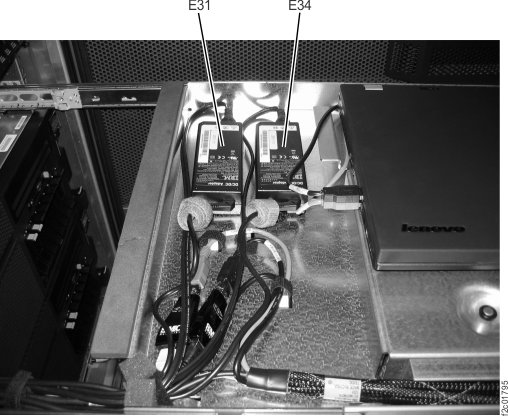
    Power supply, 20V (laptop tray at front of rack) locations
    Figure 2. Laptop tray locations (front of rack version 2)
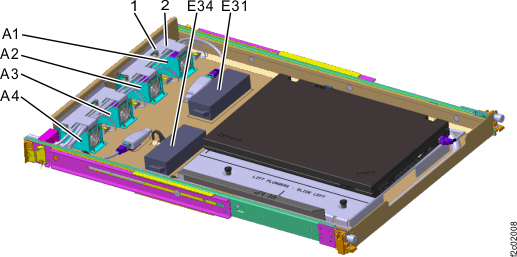
    Laptop tray (Model 961) (rack Version 2)
  2. Determine the correct power supply, 20V, to be replaced.
    1. At the rear of the rack on the Ethernet tray, locate both power junction assemblies (PJA), E41 and E42. Figure 3, Figure 4.
    2. Observe the J7 LED indicator on both PJAs. Figure 5.
    3. Use Table 1 to determine the LEDs condition and action.
    Table 1. Power supply, 20V cables
    PJA E41-J7 input power LED PJA E42-J7 input power LED Action
    On On Not failing, exit this procedure.
    Off On Go to Remove the E31 power supply, 20V Section-2
    On Off Go to Remove the E34 power supply, 20V Section-3
    Off Off There are multiple failures. If there are no open related serviceable events, go to MAP2730 Visual symptoms for Ethernet switch tray (switches, fans, power junction assemblies) (Model 961).
    Figure 3. Ethernet switch tray locations (Model 961, rear of rack version 1)
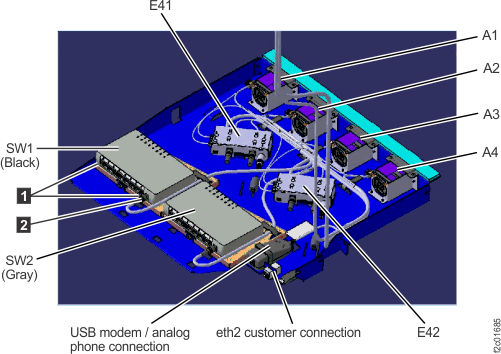
    Ethernet tray (switches, laptop fans, power distribution assembly) locations
    Figure 4. Ethernet switch tray locations (Model 961, rear of rack version 2)
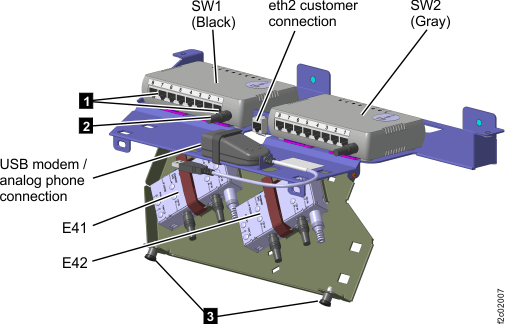
    Ethernet switch tray locations (Model 961 rack version 2 rear)
    Figure 5. Power junction assembly (PJA) locations
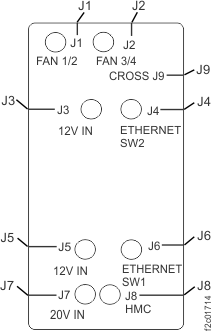
    Power junction assembly (PJA) locations

Remove the E31 power supply, 20V Section-2

Procedure

  1. The PJA E41-J7 input power LED is off.
  2. Before replacing the power supply, ensure the problem is not external to the power supply.
    1. Refer to Figure 6 for the E31 power supply.
    2. Ensure the PDU E25-J1 output power good LED indicator is lit. If it is off, do not replace the power supply, instead go to MAP2710 Power distribution unit (PDU) isolation (Models 961, 96E).
    3. Ensure the E31 power supply input cable is properly connected.
    4. Ensure the power supply cable is properly connected to the PDU E25-J1 connector.
    5. Ensure the power supply cable is properly connected to the PJA E41-J7 connector.
    6. If the cables are properly connected, go to the next step.
    7. If the cables are not properly connected, reconnect them now and then return to Remove the power supply, 20V Section-1, step 2.
    Figure 6. 20V power distribution
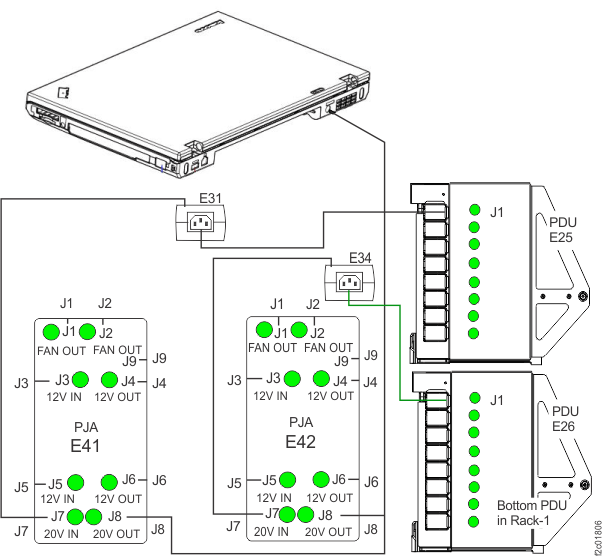
    20V power distribution
  3. Do the following steps to remove the power supply.
    1. You will not use the normal management console parts exchange GUI screens process to replace this FRU. Instead you will you the this procedure to replace and verify the new power supply.
    2. Disconnect the power supply cable at the PDU E25-J1 connector.
    3. Disconnect the power supply cable at the PJA E41-J7 connector.
    4. Both cables need to be unfastened as needed to pull them up to the power supply. The cables pass through the laptop tray cable management arm.
    5. The power supply is fastened to the laptop tray with hook-and-loop fastener tape on the bottom of the power supply. Lift up on the power supply until it comes loose. Be careful to not disturb the E34 power supply which is providing power to the laptop.
  4. Go to Install the power supply, 20V.

Remove the E34 power supply, 20V Section-3

Procedure

  1. The PJA E42-J7 input power LED is off.
  2. Before replacing the power supply, ensure the problem is not external to the power supply.
    1. Refer to Figure 6 for the E34 power supply.
    2. Ensure the PDU E26-J1 output power good LED indicator is lit. If it is off, do not replace the power supply, instead go to MAP2710 Power distribution unit (PDU) isolation (Models 961, 96E).
    3. Ensure the E34 power supply input cable is properly connected.
    4. Ensure the power supply cable is properly connected to the PDU E26-J1 connector.
    5. Ensure the power supply cable is properly connected to the PJA E42-J7 connector.
    6. If the cables are properly connected, go to the next step.
    7. If the cables are not properly connected, reconnect them now and then return to Remove the power supply, 20V Section-1, step 2.
  3. Do the following steps to remove the power supply.
    1. You will not use the normal management console parts exchange GUI screens process to replace this FRU. Instead you will you the this procedure to replace and verify the new power supply.
    2. Disconnect the power supply cable at the PDU E26-J1 connector.
    3. Disconnect the power supply cable at the PJA E42-J7 connector.
    4. Both cables need to be unfastened as needed to pull them up to the power supply. The cables pass through the laptop tray cable management arm.
    5. The power supply is fastened to the laptop tray with hook-and-loop fastener tape on the bottom of the power supply. Lift up on the power supply until it comes loose. Be careful to not disturb the E31 power supply and two USB Ethernet adapters.
  4. Go to Install the power supply, 20V.

Install the power supply, 20V

Procedure

  1. Ensure the new power supply has hook-and-loop fasteners on the bottom. If it does not, locate the fasteners in the FRU container and apply them.
  2. Install the power supply in the laptop tray. Push down firmly to ensure the hook-and-loop fastener is fully engaged.
  3. Route the power supply cables through the management arm. Allow slack at the laptop tray end. When you push the laptop tray in to the normal position, the cable management arm bends and pulls the slack out of the cables.
  4. Route and connect the cable to the PDU J1 connector.
  5. Route and connect the cable to the PJA J7 connector.
  6. Is the PJA J7 LED indicator lit?
  7. Ensure the power supply cables are properly fastened.
  8. Display open serviceable events to ensure no related problems occurred during this parts exchange.
  9. Exit this procedure.