Exchange the CEC enclosure media backplane assembly
Before you begin
 Use approved ESD procedures to prevent damage.
Attention:
- This procedure is not a stand-alone procedure. Customer disruption and damage to the hardware might occur when microcode and power boundaries are not in the proper conditions for this service action.
- If a serviceable event FRU repair directed you to this procedure, the microcode and power boundaries are already set.
- If a serviceable event FRU repair did not direct you to this procedure, see MAP1230 Replace a FRU without using a serviceable event.
Notes:
- All the cables and FRUs to be removed must be uniquely identified so they can be reinstalled correctly.
- If an installed earthquake resistance kit prevents you from accessing this FRU, refer to MAP1600.
Remove the media backplane assembly
Procedure
- At the rear of the storage facility, view
both CEC enclosure power supplies.
Figure 1. CEC enclosure DC good LEDs 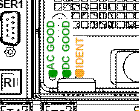
Are both DC GOOD LEDs flashing?
- Yes, continue with the next step.
- No, do not continue with this FRU replacement. Go to MAP4840 CEC enclosure fails to power off during CEC enclosure parts exchange to fix the problem with the CEC enclosure not being in the power off state.
- Remove
all power from the CEC enclosure.
- At the rear of the CEC enclosure, disconnect the power input cables
 to both CEC enclosure power supplies.
 - At the CEC enclosure control panel, observe
the green Power® Present icon,
beneath the white Power button.
- If it is slow flashing, the CEC enclosure is still in the power-off state. DO NOT CONTINUE. Ensure that you have unplugged the power cables.
- If it is off, go to the next step.
Figure 2. CEC enclosure (rear) 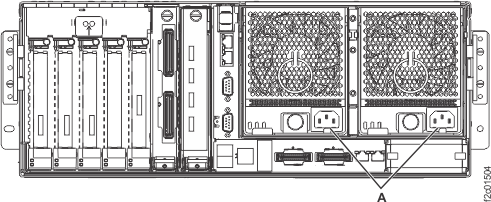
- At the rear of the CEC enclosure, disconnect the power input cables
- At the front of the rack, while pushing the blue plastic retaining tab to the right, pull the DVD-RAM drive
 and filler panel out. See Figure 3.
 Figure 3. Removing the DVD-RAM drive and filler panel 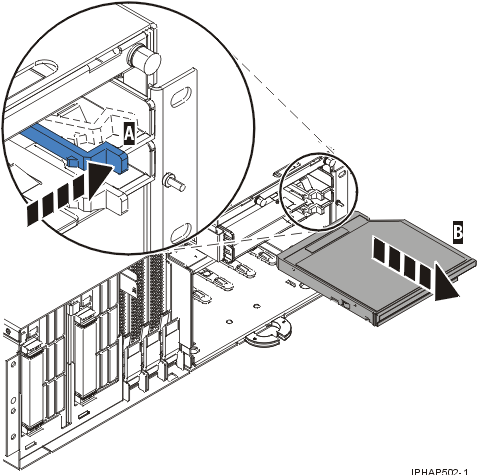
- Remove the media backplane assembly. See Figure 4.
- Pull the two orange locking knobs out until they unlock.
- Grasp the media backplane assembly and slowly pull it out of the disk drive backplane assembly.
Figure 4. Removing the media backplane assembly 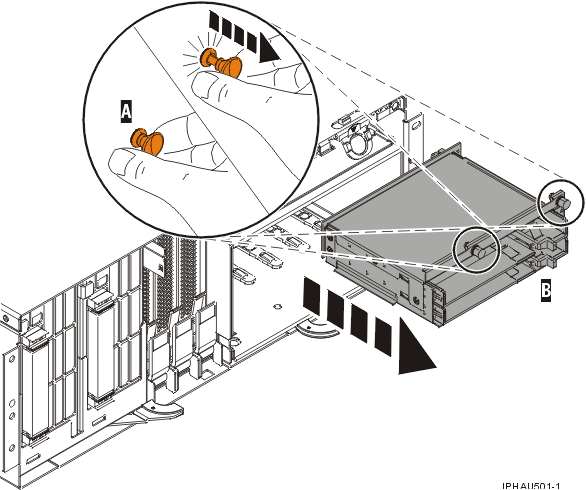
- Pull the two orange locking knobs
Install the media backplane assembly
Procedure
- Pivot the CEC enclosure fan orange pull rings up out of the way.
- Align the media backplane assembly with the disk drive backplane assembly opening.
- Gently slide the media tray into place, and then push the two orange locking knobs into the locked position.
- While pushing the blue plastic retaining tab to the right, push the DVD-RAM drive and filler panel in fully.
- At the rear of the CEC enclosure, connect the power input cables to both CEC enclosure power supplies.
- Ensure that the CEC enclosure is in the power-off state before you continue. At the CEC enclosure control panel, wait for the green Power Present icon, beneath the white Power button to slow blink, and then continue the repair.
- Exit this service information center parts exchange procedure and return to the procedure that sent you here.