Exchange the laptop unit internal parts (T520, T530, T540)

Before you begin

Icon for electrostatic discharge wrist strapUse approved ESD procedures to prevent damage.

Attention:
  • This procedure is not a stand-alone procedure. Customer disruption and damage to the hardware might occur when microcode and power boundaries are not in the proper conditions for this service action.
  • If a serviceable event FRU repair directed you to this procedure, the microcode and power boundaries are already set.
  • If a serviceable event FRU repair did not direct you to this procedure, see MAP1230 Replace a FRU without using a serviceable event.
Notes:
  • All the cables and FRUs to be removed must be uniquely identified so they can be reinstalled correctly.
  • If an installed earthquake resistance kit prevents you from accessing this FRU, refer to MAP1600.

Remove laptop unit internal parts

Procedure

  1. Find the FRU that applies:
    Option Description
    DVD drive Exit this procedure and open the laptop unit DVD drive procedure.
    Hard drive Exit this procedure and open the laptop unit hard drive procedure.
    Keyboard Go to step 2.
    Memory DIMM Go to step 3.
    All other internal parts Go to step 2.
  2. The laptop unit FRUs not listed above (such as the motherboard and display) normally are not replaced as it takes too long and may require special tools. Instead, you would call the next level of support and they would most likely direct you to replace the entire laptop unit. The hard drive, DVD-RAM drive and memory DIMM from the old laptop unit would be moved to the new laptop unit. You must order the exact replacement laptop unit used for DS8000®; it has the needed features.
  3. These FRUs are replaced without replacing the entire laptop unit. Perform the following steps:
    1. Reference the DS8000 service documentation CD that came with the installation ship group. It should be stored in the front upper left open compartment of Rack-1.
    2. Start the CD and open the laptop unit service documentation PDF.
    3. Determine the FRU replace procedure
    4. If the laptop unit needs to be removed from the rack to remove the FRU, follow the steps described in Exchange the laptop unit (T520, T530, T540).
    5. Remove the laptop FRU.

Install laptop unit internal parts

Procedure

  1. Install the laptop FRU.
  2. If the laptop unit was removed from the rack, reinstall it now and connect the cables.
    1. For T520 and T530 management consoles, see Figure 1:
      • Power Callout label 5
      • Left side, upper USB for eth0 black private network Callout label 1
      • Left side, lower USB for eth3 gray private network Callout label 2
      • Rear USB for modem Callout label 3
      • eth2 customer network Callout label 4
      Figure 1. ThinkPad T520, T530 laptop unit cable connections
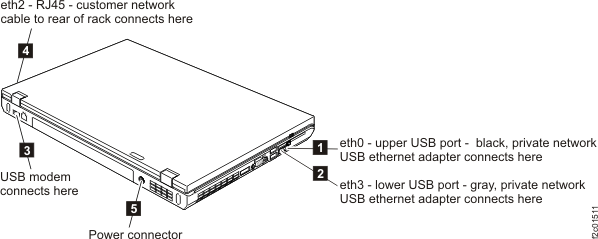
      ThinkPad T520 laptop unit cable connections
    2. For T540 management consoles, see Figure 2 and Figure 3:
      • Power Callout label 2 Figure 2
      • Power-on card power near Callout label 2 Figure 2
      • Left side, front USB for eth0 black private network Callout label 7 Figure 2
      • Left side, rear USB for eth3 gray private network Callout label 6 Figure 2
      • Right side, rear USB for modem Callout label 6 Figure 3
      • eth2 customer network Callout label 1 Figure 2
      Figure 2. ThinkPad T540 laptop unit cable connections (left and rear)
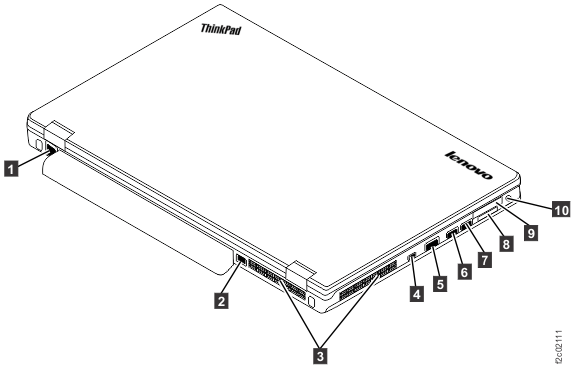
      ThinkPad T540 laptop unit cable connections (left and rear)
      Figure 3. ThinkPad T540 laptop unit cable connections (right)
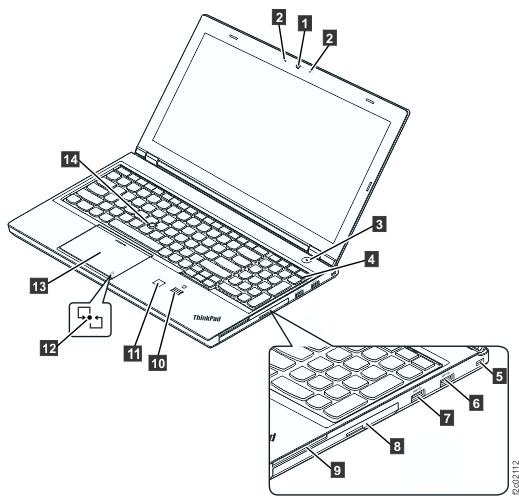
      ThinkPad T540 laptop unit cable connections (right)
  3. Power on and log in to the laptop unit.
  4. Test the laptop unit to ensure all connections are functioning:
    1. Use the network topology tool to ensure the gray and black private network connections are functioning. See MAP7001 Using the network topology tool for more information.
    2. Display open serviceable events needing repair. If there are serviceable events related to this HMC or private network timeout problems created before or during the time you replaced this laptop unit, close them now.
    3. Run the storage facility status (end of call) option. See MAP1100 View storage facility state (end of call) for more information.
    4. If the customer allows a phone line connection, test the modem. Select Service Management > Manage Outbound Connectivity > Configure > Local Modem > Test.
    5. If the customer allows VPN connections, test it. Select Service Management > Manage Outbound Connectivity > Internet VPN > Test . If the test fails, see MAP1301 Isolating Call Home/remote services failure.
    6. Ask the customer to test the access of the application or method that they will use to connect to the DS8000 Storage Manager in the laptop unit.
  5. This ends this procedure.